

How to Backup a WordPress Website Safely and Easily
Backing up a WordPress website is one of the most important tasks for any website owner. However, many people ignore backups until something goes wrong. As a result, they risk losing their entire website.
In this guide, you will learn how to backup a WordPress website using simple and reliable methods. Moreover, you will understand why regular backups are essential for security and SEO.
Why WordPress Backups Are Important
A WordPress backup is a copy of your website files and database. If your site crashes, gets hacked, or shows errors, a backup allows you to restore everything quickly.
For example, backups protect you from:
- Website hacking
- Plugin or theme conflicts
- Server failure
- Accidental content deletion
Therefore, regular backups save time, money, and stress.
👉 To improve overall protection, also read our guide on
WordPress Security Best Practices
Different Ways to Backup a WordPress Website
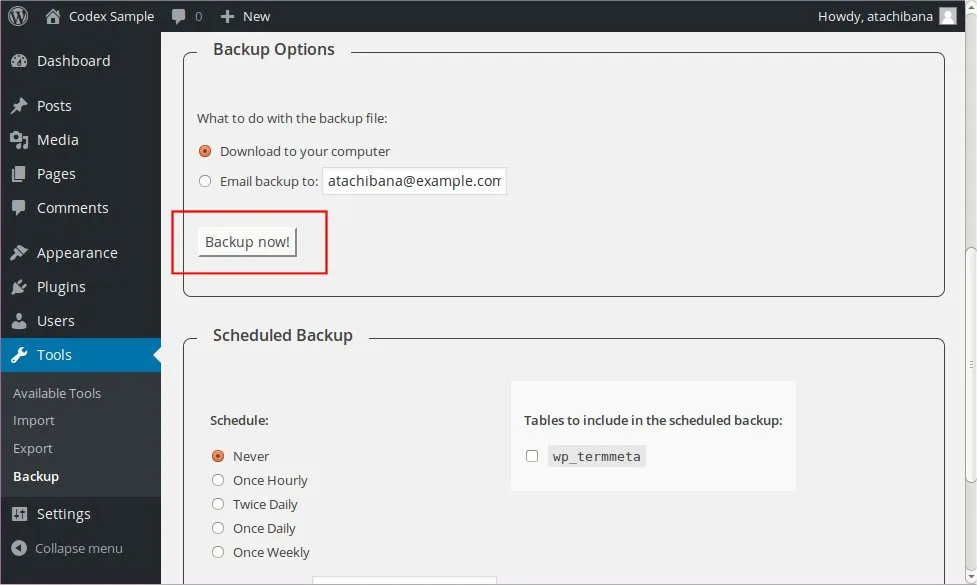
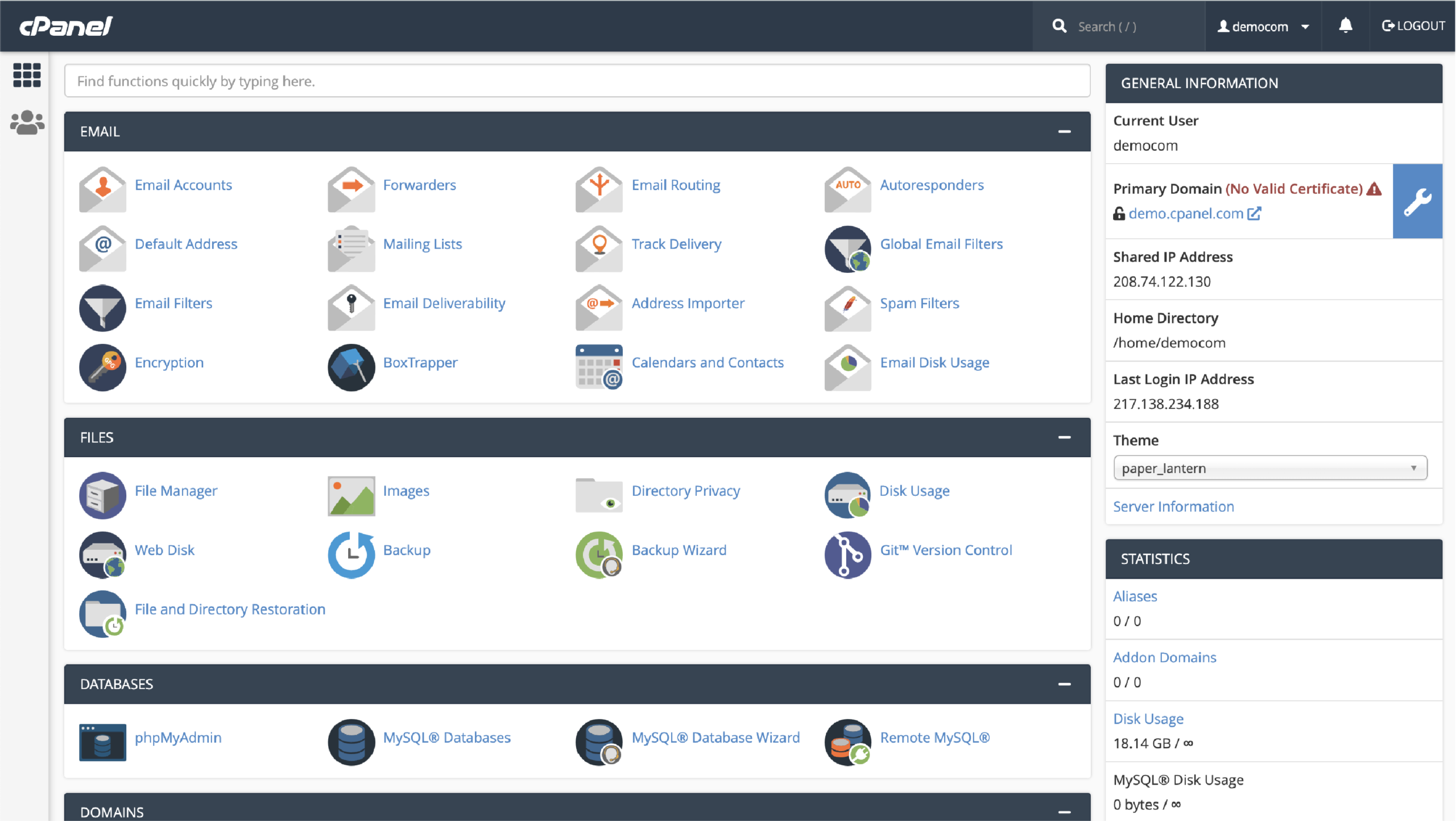
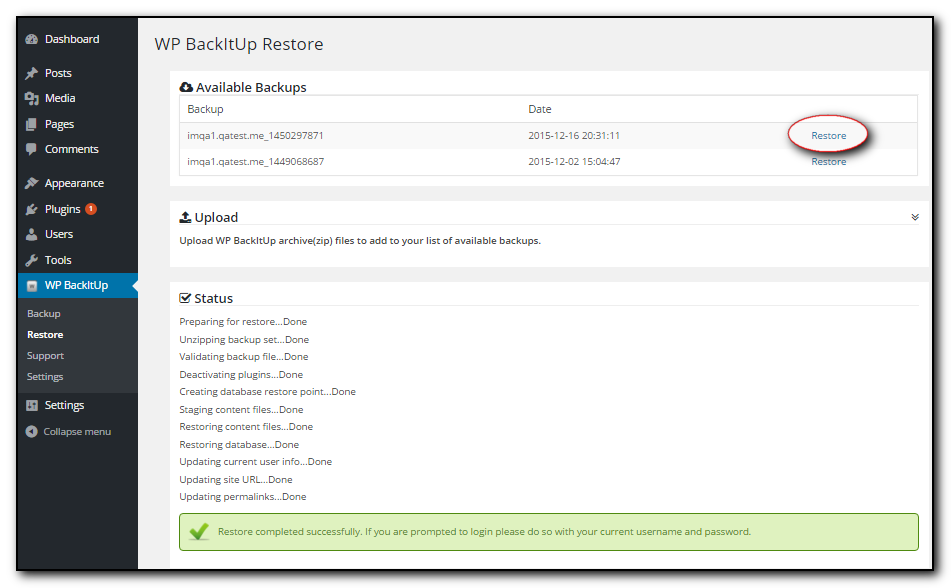
There are three main ways to create WordPress backups. Each method has its own benefits.
Method 1: Backup WordPress Using a Plugin (Recommended)
Using a plugin is the easiest and safest option, especially for beginners.
Popular WordPress backup plugins include:
- UpdraftPlus
- All-in-One WP Migration
- Jetpack Backup
These plugins allow you to schedule automatic backups and store them securely.
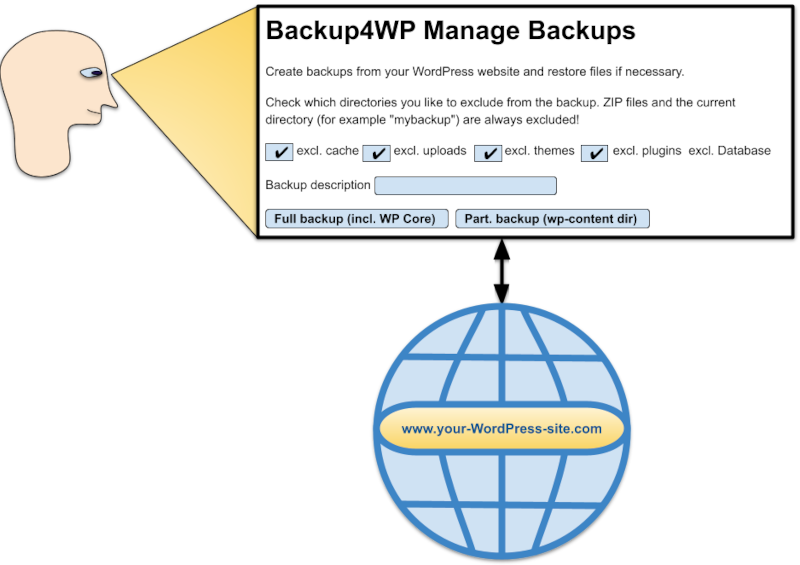
Steps to Backup with a Plugin
- Install and activate a backup plugin
- Open the plugin settings
- Choose files and database
- Select cloud storage (Google Drive, Dropbox)
- Run the backup
For official plugin guidance, you can visit:
https://wordpress.org/plugins/updraftplus/
Method 2: Backup WordPress Using Hosting Provider
Many hosting companies offer built-in backup tools. Therefore, you should check your hosting control panel.
Usually, hosting backups include:
- Daily or weekly backups
- One-click restore option
- Server-level security
However, you should not rely only on hosting backups. Instead, always keep your own copy.
Method 3: Manual WordPress Backup (Advanced Users)
Manual backups give full control, but they require technical knowledge.
You need to:
- Download website files via FTP
- Export database from phpMyAdmin
Although this method works well, it is not beginner-friendly.
How Often Should You Backup a WordPress Website?
Backup frequency depends on your website activity.
- Blog websites: Weekly backups
- Business websites: Daily backups
- eCommerce websites: Real-time or daily backups
As a result, frequent updates require frequent backups.
Best Practices for WordPress Backups
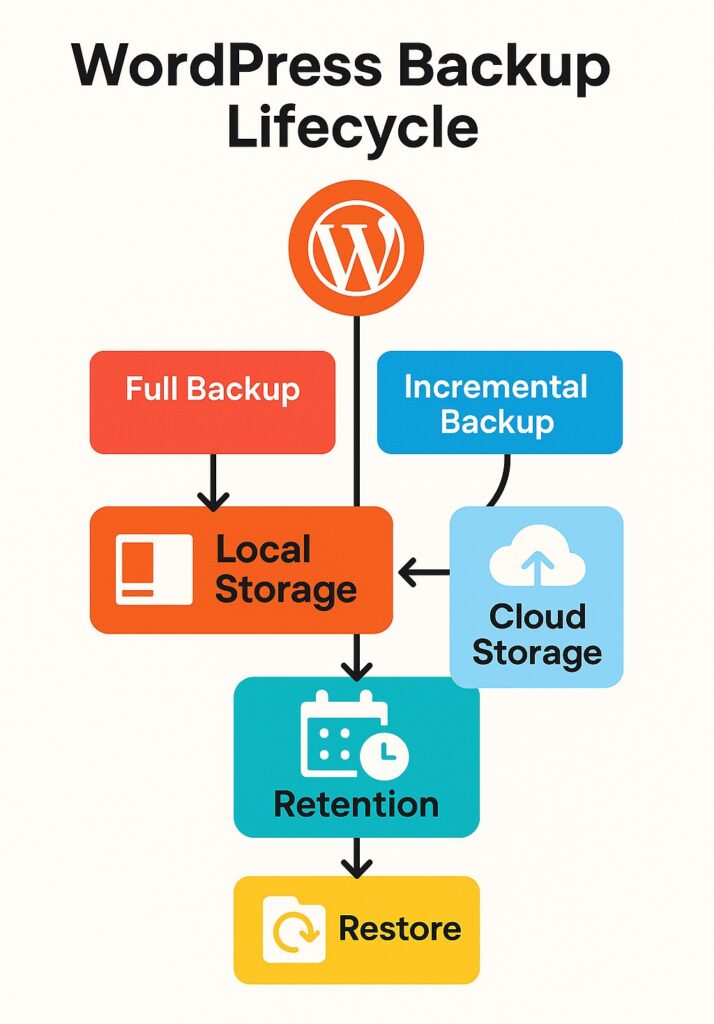
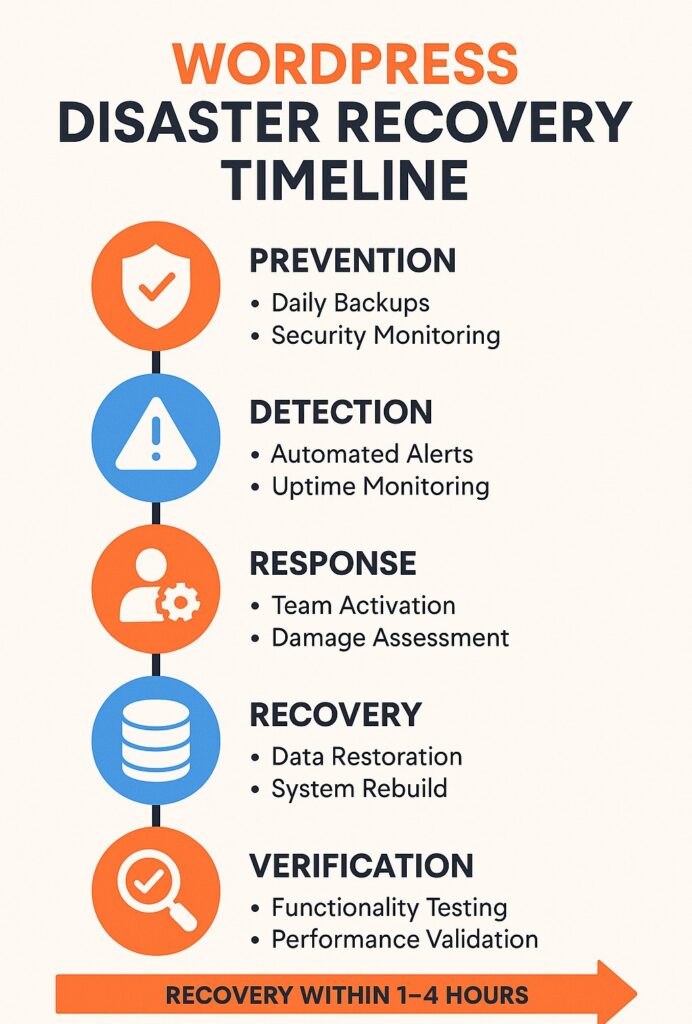
To keep your backups safe and useful, follow these best practices:
- Store backups offsite (cloud storage)
- Enable automatic backups
- Test backups regularly
- Keep multiple backup versions
Additionally, backups also help during website migration or redesign.
How WordPress Backups Help SEO
Website downtime affects SEO rankings. However, backups help restore your site quickly after a problem.
Because of this:
- Your site stays online
- Google trust remains intact
- User experience improves
In short, backups support long-term SEO success.
Final Thoughts
Learning how to backup a WordPress website is essential for every website owner. While plugins offer the easiest solution, combining plugin backups with hosting backups gives maximum protection.
If you value your website’s data, performance, and SEO, make backups a regular habit.